Rigify edition
The Rigify workflow
Author on the metarig
- Add or select a bone on your metarig.
- Set the bone's Rigify Type to
izom.PropUI. - Edit the setup in the izom PropUI Rigify editor in Rigify Parameters, or move the editor to the 3D Viewport sidebar from Editor Settings.
- Add entries to the Entry List and configure labels, values, display, conditions, and storage — the same way as the main editor.
- Choose selection-based Visible on Bones or Always Visible output.
- Keep the UI in Rig Main Properties, or give it a separate panel and sidebar tab.
- Arrange the output in Generated Layout.
- Generate the rig with Rigify.
All authored data remains stored on the metarig through Rigify parameters, regardless of where the editor is displayed.
izom.PropUI and open its Rigify parameters.Where the editor lives
Editor Lives In is stored per PropUI component:
- Rigify Parameters is the default. Select the metarig bone that owns the component to edit it.
- 3D Viewport Sidebar moves the same complete editor to the PropUI Rigify tab. Rigify Parameters then shows a navigation message instead of a duplicate editor.
The sidebar is available only for an actual izom.PropUI metarig component.
Generated controls cannot inherit the authoring editor. Its header shows the
active or pinned host bone beside the pin. Pinning keeps that component open
while selecting other bones, generated controls, or objects, remains stable
through Undo and Redo, and stays outside Undo History. It clears when the file
or feature set reloads.
Shortcuts follow the chosen editor location. In the sidebar they respond only while the PropUI Rigify tab is active, so the Full edition's PropUI tab can safely use the same bindings.
Generated UI display
Panel location
Panel Location controls the generated parent panel:
- Rig Main Properties keeps the established native Rigify output. Use Position in Rig Main Properties to place the complete PropUI above or below native Rigify blocks.
- Separate Panel creates a top-level generated panel. Set a custom Panel
Title and Sidebar Tab; blank values fall back to
PropUI: <host bone>andItem. Generated Layout sub-panels stay nested below that panel.
Each PropUI component can use its own panel and tab organization.
Visibility
- Always Visible shows the component whenever its generated rig is active. The Visible on Bones list becomes read-only but is preserved unchanged for returning to selection-based behavior.
- With Always Visible off, Visible on Bones is the ordered list of controls whose selection reveals the main panel and all its generated sub-panels.
- Add All Selected Bones adds the complete current pose-bone selection in one undoable action. It accepts metarig or generated-rig selections, keeps the active bone first, and skips duplicate or invalid targets.
- Target names are editable. Every successful Rigify generation refreshes the available generated controls, including generated-only FK, IK, parent, and tweak controls. Opening a search also initializes a generated rig that predates the current session.
- Metarig bones are read live whenever a search opens, so newly added or renamed bones appear immediately. An exact generated-control name resolves to that control; a metarig bone name expands through Rigify's mapping to its corresponding generated controls.
- Duplicate picker targets are prevented; manually typed duplicates are highlighted.
With Keep Host Control, an empty Visible on Bones list retains the original host-control fallback. Metarig Only requires an external visibility target unless Always Visible is enabled.
Host output
Host Output has two modes:
- Keep Host Control preserves the existing
basic.raw_copyoutput, including constraints, relinking, parenting, and widgets. - Metarig Only keeps the host as an authoring component but omits it from the generated rig. The host is no longer a valid visibility or property target. Reparent any metarig children before enabling this mode, because the authoring host is not a generated structural bone.
Metarig Only managed properties must use an external One Prop Bone or an external per-entry override. Native passthrough that should survive host omission must also transfer to an external One Prop Bone.
Property storage and metarig sync
Storage is bone-based rather than arbitrary data-blocks:
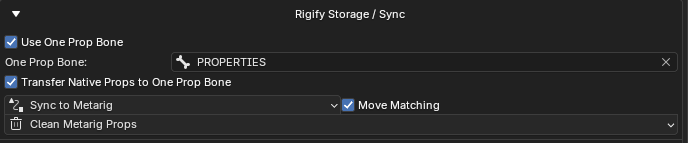
- Use One Prop Bone — store all managed generated properties on one chosen generated bone.
- One Prop Bone — an editable target name with a searchable generated-rig control picker. It uses the same live metarig-bone list and refreshed generated-control choices as Visible on Bones.
- Use Prop Bone Override (per entry) — explicitly send one managed entry to another control. With the switch off, the entry follows the current shared Host or One Prop Bone; its saved override name is inactive.
- Make All Entries Follow Shared Storage — disable every per-entry override in one confirmed action while retaining saved choices for later.
- Sync to Metarig — create or refresh managed properties on available metarig-backed storage bones. Generated-only targets are skipped and reported instead of silently falling back to the host.
- Sync to Metarig, Clean Metarig Props, and Import Native Props each create a normal Blender Undo step.
- Move Matching — after syncing a destination, remove the matching managed property from other currently active storage bones.
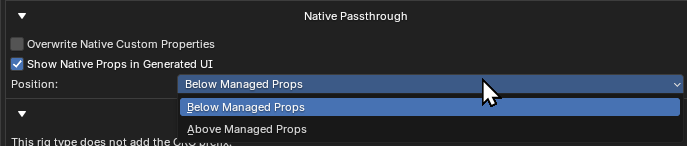
- Native Passthrough — preserve unmanaged native custom properties and draw them above or below the managed controls.
Existing 1.0 .blend files initially follow shared storage. A non-empty
per-entry bone in older exported JSON is treated as an intentional enabled
override when imported.

basic.raw_copy — relinking constraints, parent bone selection, and widget options.Cleanup scopes
Normal Clean Metarig Props targets the Host, active prop bones, or both and offers Managed Only, Unmanaged Only, Selected Entry, and All Custom Properties scopes. Only enabled shared and per-entry storage targets count; saved disabled override names are ignored.
Two deliberate metarig-wide tools are also available:
- Clean Managed Props Across Metarig removes properties across every metarig pose bone when their Property IDs match managed entries in this setup.
- Remove All Custom Properties from Metarig removes every managed and unmanaged custom property from every metarig pose bone.
Both preview affected property and bone counts, have configurable confirmation rules, are undoable, and report their final totals.
Metarig-wide cleanup is intentionally broad
Managed matching uses Property ID. An unrelated property with the same ID also matches. Review the confirmation preview before continuing.
Generated UI internal controls
Optional controls you can place in the generated UI, authored on the metarig:
- Generated UI Enabled — let the rig user turn the PropUI section on or off.
- Disable While Transforming / Disable While Playback — hide the generated UI during transforms or animation playback.
Regenerate after changes
Rigify owns the generated UI, so the feature set always generates through Rigify's normal rig generation. Regenerate the rig after changing metarig PropUI settings.
Setup transfer
Rigify 1.5 imports setup JSON from Full and Free and exports an edition-aware portable setup:
- Full entries, hierarchy, Generated Layout, sub-panels, row boxes, Display Links, dynamic labels, operators, and custom RNA paths are normalized into their Rigify equivalents.
- Standalone pose-bone storage paths map to One Prop Bone or per-entry overrides, and pose-bone visibility maps to Visible on Bones.
- Object-only storage or visibility, standalone-only panel placement, and custom branding have no Rigify equivalent and are reported as skipped.
- Free setups preserve every shared Entry List option, hierarchy relationship, and Generated Layout row.
- Rigify exports can be imported by Full and Free; each receiving edition keeps what it can represent and reports reductions.
See Import & export for the complete cross-edition map.
Editor Layout
Output Setup provides Editor Layout visibility controls for Generated UI Display, Property Storage & Metarig Sync, Native Passthrough, and Host Output. Their visibility and ordering are included in saved editor defaults and settings import/export.
Everything else
Entry types, Selected Entry, Dynamic Labels, Conditions, Generated Layout (shared rows, sub-panels, row boxes), Editor Layout, Editor Settings, saved defaults, and diagnostics otherwise behave as they do in the main editor — see the main documentation.