The editor
Editor settings
This configures the editor, not the UI you make
Everything here changes how the PropUI editor itself looks and behaves — it does not change the panels you generate. For actually building a UI, see Building the UI.
Editor Settings holds display preferences, confirmation defaults, saved defaults, and reset tools. Import/export controls also live here — those are covered in Import & export. Which editor sections are shown, hidden, and reordered is handled separately by Editor Layout.
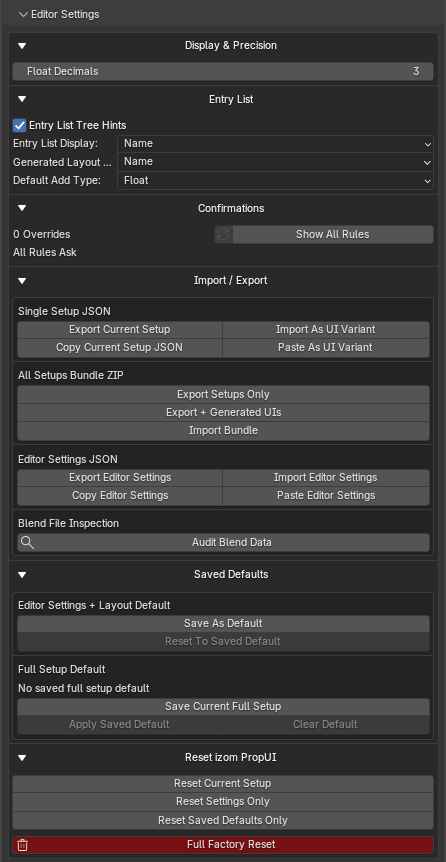
Display & precision
| Setting | Range | Description |
|---|---|---|
| Float Decimals | 0–6 | How many decimals editor float values show while editing PropUI itself. |
Entry List
| Setting | Description |
|---|---|
| Entry List Tree Hints | Show indentation and parent/child icons in the Entry List. |
| Entry List Display | Whether the leading Entry List column edits/shows Name or Property ID. |
| Generated Layout Display | Whether Generated Layout rows show the entry Name or Property ID. |
| Default Add Type | The entry type used by the Add button and the Shift+A shortcut. |
Confirmations
Each confirmation setting controls the default answer for one prompt or a closely related family of prompts.
The section opens in a compact mode:
- An override count shows how many rules are set to something other than Ask.
- A Reset button restores every rule to Ask.
- Show All Rules lists every rule. When it's off, only customized rules are
shown; if none are customized, the section shows
All Rules Ask.
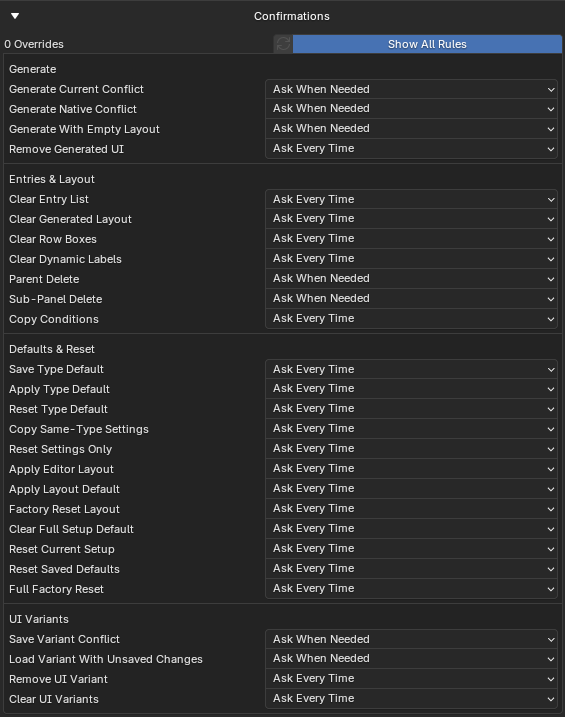
Most rules offer Ask / Confirm Automatically / Cancel Automatically; the generation and variant rules offer action-specific choices:
| Confirmation | Options |
|---|---|
| Generate Current Conflict | Ask When Needed, Overwrite, Make New. |
| Generate Native Conflict | Ask When Needed, Overwrite Conflicts, Keep Native Values. |
| Generate With Empty Layout | Ask When Needed, Apply Properties Only, Cancel. |
| Remove Generated UI | Ask Every Time, Remove From Editor Only, Stop UI Keep Script, Remove Everything. |
| Parent Delete | Ask When Needed, Delete Parent Only, Delete Hierarchy. |
| Sub-Panel Delete | Ask When Needed, Delete Sub-Panel Only, Delete Hierarchy. |
| Copy Conditions | Ask Every Time, Confirm Automatically, Cancel Automatically. Used when copying Conditions to all siblings or all child entries. |
| Save Variant Conflict | Ask When Needed, Overwrite, Make New. |
| Load Variant With Unsaved Changes | Ask When Needed, Save To Last Loaded, Save As New, Lose Changes. |
The remaining rules are simple Ask / Confirm / Cancel actions:
Clear Entry List · Reset Current Setup · Reset Saved Defaults · Full Factory Reset · Save Type Default · Apply Type Default · Reset Type Default · Copy Same-Type Settings · Clear Generated Layout · Clear Row Boxes · Clear Dynamic Labels · Reset Settings Only · Apply Editor Layout · Apply Layout Default · Factory Reset Layout · Clear Full Setup Default · Remove UI Variant · Clear UI Variants.
Import / export
Covered on the Import & export page. Editor Settings JSON includes your Editor Layout; single setup JSON does not.
Saved defaults
Editor Settings Default
- Save As Default: save current editor settings and Editor Layout as the reusable default.
- Reset To Saved Default: reset editor settings and Editor Layout to that saved default.
Full Setup Default
- A status label tells whether a saved full-setup default exists.
- Save Current Full Setup: save the current setup as the default for new blank editors.
- Apply Saved Default: create and load a UI Variant from the saved default.
- Clear Default: delete the saved full-setup default.
The full setup default follows UI Variant rules: it stores the setup, not Editor Settings or Editor Layout.
Reset izom PropUI
| Reset | What it clears |
|---|---|
| Reset Current Setup | The current setup, back to blank. |
| Reset Settings Only | Editor settings and Editor Layout, to factory defaults. |
| Reset Saved Defaults Only | Saved editor, Editor Layout, full-setup, and type defaults. |
| Full Factory Reset | Current setup, settings, and saved defaults. |

Editor Layout
Editor Layout lets you reorder and hide editor sections without deleting anything. Changes are staged in the list first; press Apply List State to apply the staged order and visibility to the live editor.
Editor Layout has its own default tools:
- Save Layout Default: save the current section order and visibility as the reusable layout default.
- Reset To Saved Layout: apply the saved layout default.
- Factory Reset Layout: restore the built-in section order and show all sections.
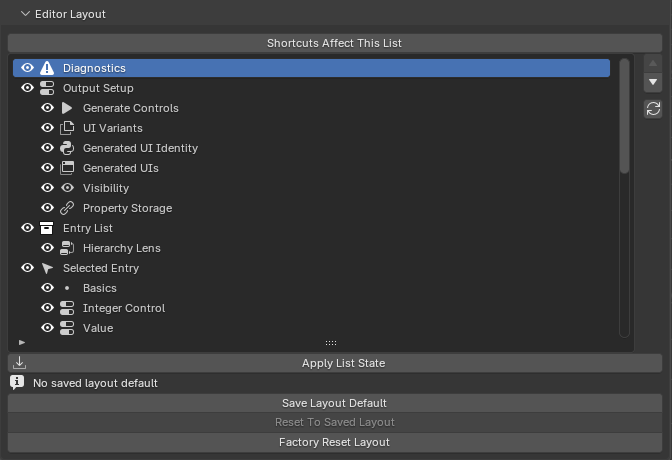
The available hide toggles, grouped by section:
Hide Last PropUI Warnings · Hide Output Setup · Hide Entry List · Hide Selected Entry · Hide Generated Layout · Hide Editor Settings
Hide Generate Controls · Hide UI Variants · Hide Generated UI Identity · Hide Generated UIs · Hide Visibility · Hide Property Storage
Hide Entry Hierarchy Lens
Hide Basics · Hide Value · Hide Integer Control · Hide Display · Hide Dynamic Labels · Hide Conditions · Hide Storage · Hide Tools · Hide Type Defaults · Hide Copy Settings · Hide Entry Presets
Hide Selected Row · Hide Layout Sync Options · Hide Row Boxes
Hide Display & Precision · Hide Entry List Settings · Hide Confirmations · Hide Import / Export · Hide Saved Defaults · Hide Reset izom PropUI