Building the UI
Import & export
PropUI can move setups, generated scripts, presets, and editor settings in and
out of a .blend using JSON files, ZIP bundles, and the clipboard. These tools
use the file and clipboard access the extension declares (see
Installation) — there's nothing to turn
on.
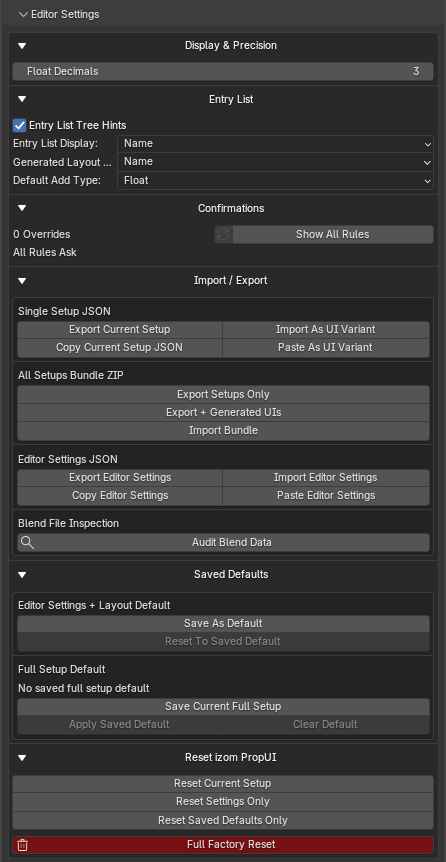
Single setup JSON
A full PropUI setup as one JSON file or clipboard payload:
- Export Current Setup: write the current full setup to JSON.
- Import As UI Variant: import one full setup JSON as a UI Variant.
- Copy Current Setup JSON: copy the full setup JSON to the clipboard.
- Paste As UI Variant: paste a full setup JSON from the clipboard as a variant.
Imports become variants
A full setup import creates a UI Variant rather than immediately overwriting the current editor. Nothing changes in your live editor until you load that variant.
Single setup JSON contains the generated-output setup, entries, Generated Layout, sub-panels, row boxes, and storage/generation settings. It does not contain Editor Settings or Editor Layout.
To create or edit the file directly, use the JSON authoring guide for document structures, fields and complete examples for each edition.
Cross-edition setup compatibility
Setup JSON can move between Full, Free, and Rigify wherever the receiving edition has an equivalent feature:
- Full → Full, Rigify, or Free: Rigify keeps compatible entries, hierarchy, Generated Layout, sub-panels, row boxes, Display Links, dynamic labels, operators, and custom paths. Free keeps its five entry types and supported rows, flattens unsupported containers, and produces an import report.
- Rigify → Full or Free: Full imports the host setup as a UI Variant and can translate pose-bone storage and Visible on Bones targets when a receiving armature is selected. Disabled entry overrides remain inactive; Always Visible and compatible separate-panel titles and tabs are preserved. Free retains its supported entries and rows, maps shared bone storage to the selected armature Object, and keeps compatible titles and tabs.
- Free → Full or Rigify: Every shared entry, hierarchy relationship, and Generated Layout row is preserved.
Unsupported targets or layout features are reported rather than silently treated as successful. Rigify maps standalone sidebar panels to separate PropUI panels and preserves their titles, tabs, and Always Visible behavior. Other standalone-only panel placement, branding, and object-only targets have no direct Rigify equivalent; Free cannot represent advanced entry types, sub-panels, row boxes, visibility targets, or enabled per-entry bone storage overrides.
All-setups bundle ZIP
Move many setups at once:
- Export Setups Only: export the current editor and UI variants as setup JSON files inside one zip.
- Export + Generated UIs: export setups plus saved generated UI scripts/slot data.
- Import Bundle: import a setup bundle zip as UI variants, optionally restoring generated panels from the bundle.
Generated script export
To get standalone .py files outside the .blend, use Export .py Files
ZIP in Generated UIs. Importing generated
scripts brings them in as fully managed rows — see
Generated UIs concept.
Editor settings JSON
Your editor settings and Editor Layout, independent of any setup:
- Export / Import Editor Settings: write/read editor settings and Editor Layout.
- Copy / Paste Editor Settings: via the clipboard.
Entry presets
A single entry's compatible settings, found in Selected Entry → Tools:
- Export / Import Onto Entry: move a selected-entry type preset as JSON.
- Copy / Paste Onto Entry: via the clipboard.
An entry preset only affects the selected entry type's compatible settings.
Setup transfer, entry presets, type defaults and same-type copying preserve
popover, compact, keyframe-button and expanded-choice settings. Ramp/curve source
paths transfer with the design; their native contents stay in the original
Blender data. Saved live-value presets stay on their data owner in the .blend.
Import modes
When importing entry presets or setup JSON, you choose how existing data is treated:
- Keep Existing: preserve current settings where imported data does not need to replace them.
- Overwrite: replace current compatible values with imported values.
Inspecting a blend
Blend File Inspection offers Validate Setup, Audit Blend Data and previewed Geometry Nodes path repair. See Cleanup & diagnostics.
Saving and interrupted exports
Interrupted exports preserve an existing destination file. Save the .blend for
the editor design and project values, and use the folder button beside saved
defaults to open their actual location. See Where your work is saved.