Concepts
Property Storage
Property Storage is the default owner for the managed custom properties PropUI creates. When you make a Float, Integer, Boolean, or Array entry, the actual custom property has to live on something — a Blender data owner. That owner is the storage target.
Why it exists
Custom properties in Blender always belong to a data owner — an object, a bone, a material, a scene, and so on. PropUI lets you choose that owner once in Output Setup, and every managed entry uses it by default.
Float entry  "strength"
        │  managed custom property
        ▼
Property Storage target  →  Object "Cube"  →  Cube["strength"]
A target can be almost anything
PropUI supports a long list of storage target types — Object, Object Data, Bone, Scene, Collection, Material, World, and many data-block types. The full list with picker behavior is in the reference:
The picker adapts to the target type: object-like targets show an object picker, bone targets add a bone search, scene targets show a scene picker, and data-block targets show a search field where Blender supports it. A Resolved label tells you whether the target currently points at a real owner.
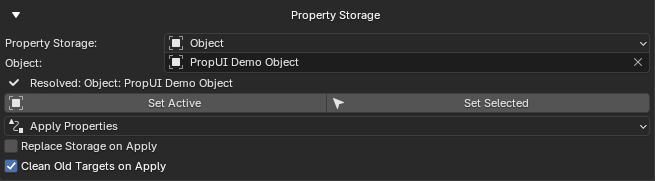
Per-entry overrides
Most setups use one storage target for everything. But any managed entry can set a Target Override to point at a different owner. That means a single generated panel can drive custom properties on several data owners at once — for example, some controls on an object and others on its mesh data.
Apply vs. Generate
You do not have to build a panel to create properties:
- Apply Properties creates or updates managed custom properties on their resolved targets, with no panel.
- Generate UI does that and builds the panel.
Both rely on storage resolving correctly. If a target cannot be resolved, Apply/Generate reports an error and names the entry that failed.
Replace vs. preserve
Options like Replace Storage on Generate/Apply clear the target's custom properties first and rebuild only what PropUI manages. Turn them off if the target has unrelated custom properties you want to keep. See Output Setup for the conflict rules.
Cleaning up
Dedicated cleanup tools can remove managed-only, unmanaged-only, or all custom properties from a target without touching your Entry List, layout, variants, or generated scripts.