Building the UI
Building layouts
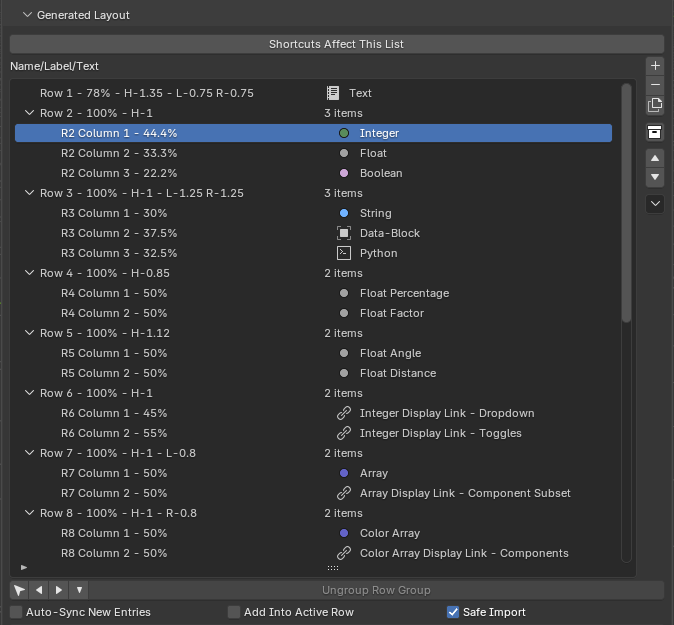
The Generated Layout is where you shape the output. For the model behind it (and the two-zone body/sub-panels rule), read the concept page. Sub-panels have their own page.
Main buttons
| Button | What it does |
|---|---|
| Add | Add/import the active Entry List entry into the layout. |
| Remove | Remove the selected layout item, row group, or sub-panel. Does not delete the source Entry List entry. |
| Duplicate | Duplicate the selected layout item or sub-panel. |
| Add Sub-Panel | Create a generated sub-panel. |
| Move Up / Move Down | Move the selected row, group, or sub-panel. |
| Tools menu | Import, Replace Import, Toggle Collapse All, Clear Generated Layout. |
Sync options
Because the Entry List and Generated Layout are independent, these options bridge them:
- Auto-Sync New Entries: newly created Entry List entries are added to the layout automatically.
- Add Into Active Row: new entries and imports join the selected row instead of making a new row.
- Safe Import: prevents importing the same Entry List entry into the layout more than once.
Import tools
- Import: append Entry List items into the layout (Safe Import skips items already present).
- Replace Import: clear the layout and rebuild once from the current Entry List order.
- Clear Generated Layout: clears the layout without changing the Entry List.
Selection & structure row
- Select-in-Entry-List: selects the layout row's source entry in the Entry List.
- Group left / right (on entry items) — group a top-level entry into the row above/below, or ungroup a grouped child.
- Outdent / Indent (on sub-panels) — move a sub-panel out one level or nest it under the previous sibling.
- Collapse toggle: collapse the selected row group or sub-panel in the editor.
- Ungroup Row Group: break a shared row back into separate rows.
Shared rows
A shared row draws multiple entries side by side in one generated row.
Make one by selecting an entry and grouping it into the row above or below (group left/right buttons, or the shared indent/outdent shortcuts while the Generated Layout is the shortcut target).
Behavior:
- The row header shows the generated row and its item count.
- Child entries draw under the header in the editor; collapsing the header hides them in the editor only.
- Column order can be changed with the Generated Layout Column menu.
- Ungroup Row Group splits the row back into single-entry rows.
- Hidden child entries either repack the row or reserve an empty slot, based on the per-entry When Hidden In Shared Row setting.
Hidden children in a shared row
If a child shares a row with a numeric parent and uses numeric visibility, Auto Fill Row can make the row jump as children appear and disappear. Keep Empty Slot keeps the spacing stable. See Conditions.
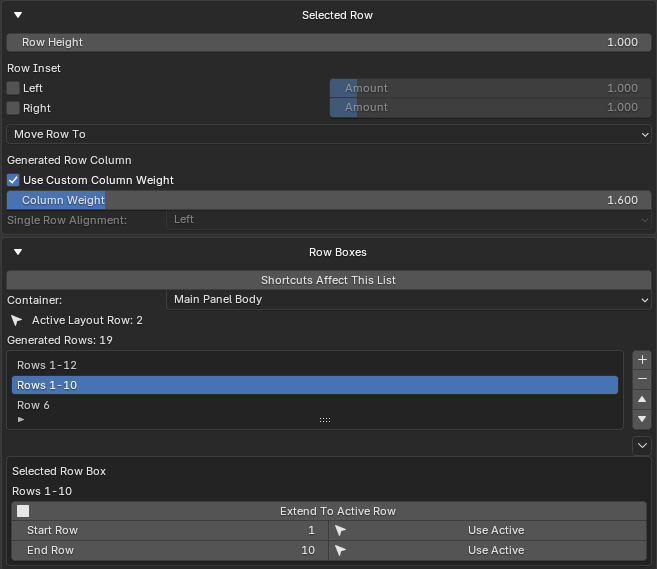
Row boxes
A row box wraps contiguous generated rows inside a Blender layout.box().
Row boxes are an advanced control; show or hide the section in
Editor Layout.
| Control | What it does |
|---|---|
| Container | Choose Main Panel Body or a sub-panel. The list is scoped to it. |
| Active Layout Row | The currently selected generated row, or None. |
| Generated Rows | Count of generated rows in the active container. |
| Add | Create a one-row box from the active row. |
| Remove | Delete the selected row box. |
| Move Up / Move Down | Move the box's range one row within its container. |
| Extend To Active Row | Expand the selected box to include the active row. |
| Start / End Row | Edit the range manually, with Use Active helpers. |
| Tools menu | Clear Row Boxes. |
Row box rules
- A box cannot span containers (e.g. body and a sub-panel).
- Boxes may nest only when fully contained — laminar ranges. Partial overlaps and duplicate ranges are rejected.
- Empty layouts cannot add row boxes.
- If layout edits orphan a box, normalization drops or clamps it.
See Layout limits for the full rules.
Per-row controls (Selected Row)
When the Selected Row section is shown, Selected Row configures the active row or row header:
| Control | Range |
|---|---|
| Row Height | 0.25 – 15.0 |
| Row Inset Left / Right + Amount | inset 0.1 – 10.0 |
| Move Row To | Main Panel Body or a sub-panel |
| Column Weight (per entry) | 0.05 – 10.0 |
| Single Row Alignment | Left, Center, Right (for a capped single-entry row) |