The editor
Finding the editor
By default the PropUI editor appears in the 3D Viewport sidebar. Press N in the 3D Viewport to open the sidebar, then select the PropUI tab.
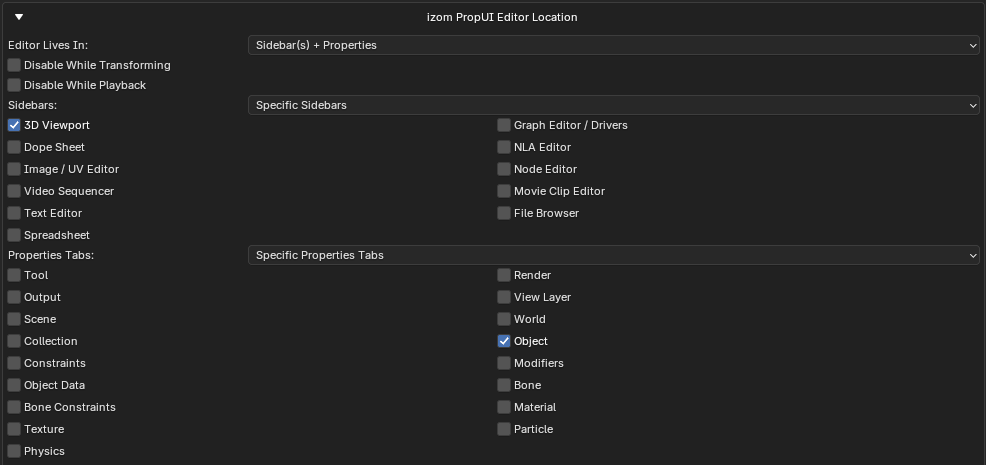
You can change where the editor itself lives in Blender's Add-ons preferences for izom PropUI, under izom PropUI Editor Location.
Editor location vs. generated panel location
Editor Location controls where the PropUI editor appears while you work. It is separate from where your generated panels appear, which you set per UI under Visibility.
Editor location controls
| Control | What it does |
|---|---|
| Editor Lives In | Sidebar(s), Properties Editor, or Sidebar(s) + Properties. |
| Disable While Transforming | Skips drawing the editor while a transform modal operator runs. |
| Disable While Playback | Skips drawing the editor during animation playback. |
| Sidebars | Specific Sidebars or All Supported Sidebars. |
| Sidebar checkboxes | Choose exactly which sidebar spaces show the editor (when Specific Sidebars is on). |
| Properties Tabs | Specific Properties Tabs or All Supported Properties Tabs. |
| Properties tab checkboxes | Choose exactly which Properties tabs show the editor (when Specific Properties Tabs is on). |
Fallback behavior
- If no specific sidebar is selected, PropUI falls back to the 3D Viewport.
- If no specific Properties tab is selected, PropUI falls back to Object Properties.
So you can never accidentally hide the editor everywhere — it always has a home.
See all preferences on the Add-on Preferences reference page.