Building the UI
Visibility
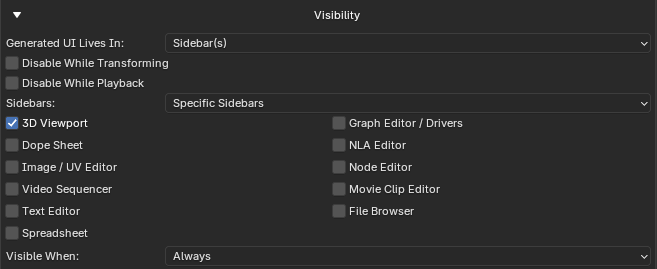
Visibility (in Output Setup) controls where and when the generated UI appears. It is separate from where the editor lives — see Finding the editor.
Where it appears
| Control | Options |
|---|---|
| Generated UI Lives In | Sidebar(s), Properties Editor, or both. |
| Sidebars | Specific Sidebars or All Supported Sidebars. |
| Sidebar checkboxes | Individual supported sidebars (when Specific). |
| Properties Tabs | Specific Properties Tabs or All Supported Properties Tabs. |
| Properties tab checkboxes | Individual Properties tabs (when Specific). |
Fallbacks
If no sidebar is selected, PropUI uses the 3D Viewport. If no Properties tab is selected, PropUI uses Object Properties.
When it draws
- Disable While Transforming: the panel does not draw during a transform modal operation.
- Disable While Playback: the panel does not draw during animation playback.
Selection-based visibility
Visible When chooses the condition:
- Always, or
- Only When These Items Are Selected.
When set to Only When These Items Are Selected, you build a filter list:
| Control | What it does |
|---|---|
| Object | Object to add to the filter. |
| Bone | Optional pose/edit bone on that object. |
| Visible When Items list | The objects/bones that allow the panel to appear. |
| Add picker | Add the chosen Object/Bone picker target. |
| Remove | Remove the selected visibility item. |
| Move Up / Move Down | Reorder visibility items. |
| Clear | Remove every visibility item. |
| Add Active | Add the active object or active bone. |
| Add Selected | Add selected objects or selected bones. |
Sub-panels inherit gating
Generated child sub-panels inherit the same poll/visibility gating as their parent panel.
Tips
- If a panel never shows up, the visibility filter is a common cause — see Troubleshooting.
- Selection-based visibility is ideal for rig controls that should only appear when the rig (or a specific bone) is selected.