Building the UI
Output Setup
Output Setup is the top-level control area for generating and managing panels. It contains the generate controls, UI variants, the Generated UI Identity fields, the generated-UI list, visibility, and property storage.
Generate controls
| Control | What it does |
|---|---|
| Generate UI | Creates/updates managed custom properties when present, writes the generated Python UI script, registers the panel classes, and shows the generated UI. |
| Replace Storage on Generate | Before generating, clears all custom properties from the default Property Storage target, then recreates only the properties this setup manages. Turn off to preserve unrelated custom props. |
| Clean Old Targets on Generate | Removes matching managed PropUI properties from old targets when entries have moved to a new storage target. |

Setups made only from Text, Operator Button, Custom RNA paths, or Display Links to non-managed sources can generate without Property Storage. If a Display Link redraws a managed entry, that linked entry still requires valid storage.
Generating with an empty layout
If entries exist but none are placed in the Generated Layout, generation uses the Generate With Empty Layout confirmation:
- Ask When Needed: prompt.
- Apply Properties Only: sync managed properties but build no panel.
- Cancel: skip the operation.
UI Variants
UI Variants are saved full editor states — see the concept page for what they are and when to use them.
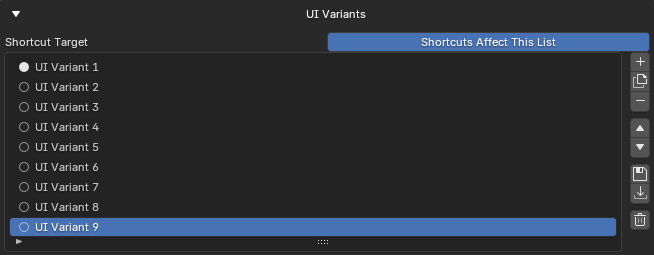
The UI Variants list gives you:
- Radio / load button: loads that variant (offering to save or discard unsaved changes first).
- Inline name field: the editor-facing variant name.
- Add: adds an empty variant holder.
- Duplicate: copies the selected variant and its saved payload.
- Remove: removes the selected holder without changing the current editor.
- Move Up / Move Down: reorders the list.
- Save: saves the current editor into the selected variant (or makes a new one, per confirmation).
- Load: loads the selected variant into the editor.
- Clear: removes every variant holder.
Conflict behavior when saving over a variant (Save Variant Conflict) and when loading over unsaved changes (Load Variant With Unsaved Changes) is set in Confirmations. The load popup can also offer Save To Last Loaded when that makes sense.
Generated UI Identity
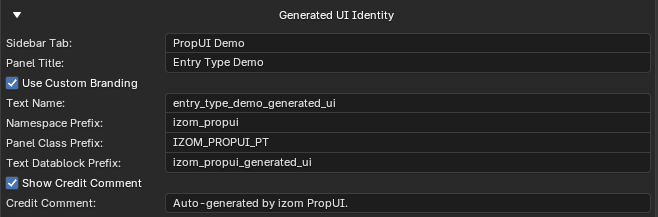
These fields describe the next generated UI:
| Field | Meaning |
|---|---|
| Sidebar Tab | The sidebar category/tab for sidebar panels. Hidden when the UI is Properties-only. |
| Panel Title | The panel title shown to users. |
Custom branding
Branding controls affect only cosmetic names in the generated .py output.
They do not rename PropUI's editor data, setup JSON, stored entries, or add-on
internals.
| Control | What it does |
|---|---|
| Use Custom Branding | Enable custom generated-output naming. |
| Text Name | Optional Text datablock name (when branding is on). Blank = automatic name. The Text Datablock Prefix is prepended, and duplicate UIs still get unique suffixes. |
| Namespace Prefix | Base prefix for generated registry keys, helper operators, integer choice/slider helpers, and internal generated-control properties. |
| Panel Class Prefix | Prefix for generated Blender panel class names. |
| Text Datablock Prefix | Prefix used when naming generated .py Text datablocks, including custom Text names. |
| Show Credit Comment | Include or omit the generated-source credit comment. |
| Credit Comment | The comment text written near the top of generated .py output when credit comments are on. |
PropUI sanitizes branding text into valid Python/Blender identifiers where needed and keeps unique UID/hash suffixes on generated classes, helper names, registry keys, and Text datablocks. Saved generated UIs keep their own branding snapshot, so changing branding later does not stop old generated panels from being removed, stopped, detected, or regenerated.
Matching an existing output
When Generate finds an existing panel with the same visible destination and panel title, the generated-UI confirmation decides whether to overwrite it, make a new output, or ask. The visible destination includes the panel location, sidebar tab, selected editor areas or Properties contexts, and Graph/Image/Node subtype filters. Property Storage is not part of this identity, so changing storage retargets the same visible panel unless you choose a new output.
Generated UIs
Generated UIs are managed outputs — editor-generated slots plus imported portable scripts copied into PropUI state — see the concept page.
Each generated UI is written to its own portable .py Text datablock inside the
.blend.
Status labels
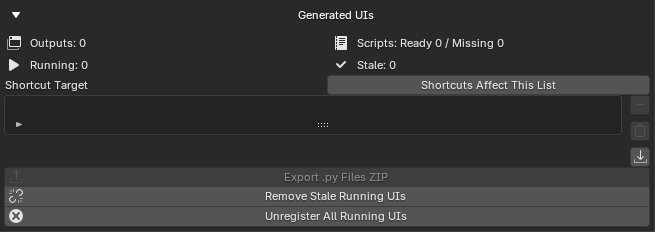
- Outputs: total managed rows shown in the list.
- Scripts: ready versus missing generated
.pyText datablocks for those rows. - Running: managed rows whose generated panel registry is currently active.
- Stale: panels still registered after their generated
.pyText script disappeared. - A missing script warning appears when any managed row expects a Text datablock that is gone.
List rows
- Play: run an existing generated
.pyText script. - Pause: stop the running generated UI for the current Blender session.
- Row label: the UI display name; imported managed scripts use a Text icon.
- Missing Script: the managed row is intact, but its expected Text datablock is gone. Run is disabled; regenerate/import a script or remove the row.
List buttons
- Remove / Clear — remove the selected / all UIs using the configured removal behavior.
- Import Generated Scripts: find unmanaged generated PropUI
.pyText datablocks in the.blendand add them as fully managed rows. - Export
.py Files ZIP: export saved generated UI scripts into one zip. - Remove Stale Running UIs: unregister panels still running after their
generated
.pyText script was removed. - Unregister All Running UIs: unregister all running panels but keep saved slots and Text scripts.
Removal modes
Choose removal deliberately
| Mode | Editor list | Live panel | .py Text datablock |
|---|---|---|---|
| Remove From Editor Only | Hidden | Kept running | Kept |
| Stop UI, Keep Script | Hidden | Stopped (this session) | Kept |
| Remove Everything | Removed | Stopped | Deleted |
With Stop UI, Keep Script, the panel can come back when the .blend is
reopened. Imported scripts are managed rows, not fragile references — they
use these same modes, so Remove Everything deletes their managed Text
datablock too.
Visibility
Visibility controls where and when a generated UI appears, including selection-based filters. It has its own page:
Property Storage
Property Storage is the default owner for managed custom properties — see the concept page and the storage targets reference for target types and picker behavior.
It is required only when the setup contains a managed Float, Integer, Boolean, Array, String, Data-Block, or Python entry. Non-managed-only panels skip storage application during generation.
Apply Properties
You can create/update properties without building a panel:
- Apply All Managed: create/update every managed non-text entry on its resolved target.
- Apply Selected: create/update only the active Entry List entry. This never clears the whole storage target.
Apply options:
- Replace Storage on Apply: when Apply All Managed runs, clear Property Storage first and rebuild managed properties. Apply Selected ignores this.
- Clean Old Targets on Apply: remove matching managed properties from old targets that no longer own those entries.
Native custom-property conflicts
If you preserve storage and a managed Property ID already exists, PropUI can ask what to do:
- Overwrite Conflicts: rebuild only the colliding managed properties. Hand-made properties are reset to editor defaults; properties previously synced by PropUI keep their current/keyed value where possible.
- Skip Conflicts: leave colliding custom properties unchanged and skip the managed entries that would replace them.
Note
PropUI may auto-rename duplicate Property IDs so a target's custom-property keys stay unique.